
Keycap Guide
What Keycaps Does Aula F75 Use? Instructions for Replacing & Choosing to Buy
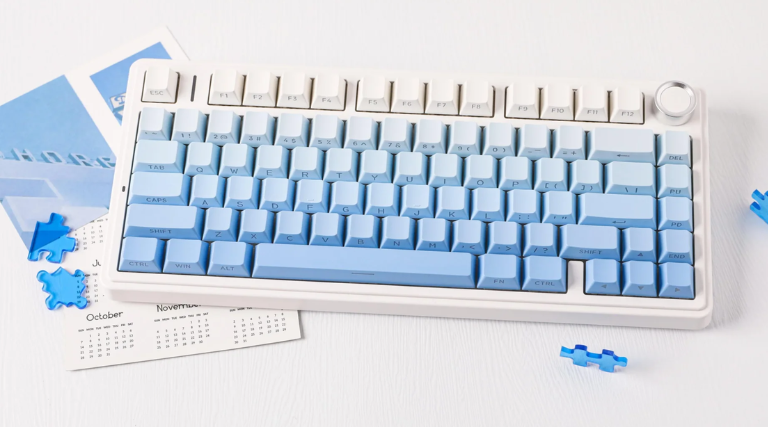
You’ve just bought an Aula F75 and are probably asking, “what keycaps does aula f75 use?” or “How can I give it a fresh new look?” As a mechanical keyboard enthusiast, I understand that customizing keycaps is not just about aesthetics—it elevates the entire typing experience. The Aula F75, with its convenient hot-swap capability and 75% layout, is a fantastic “playground” for anyone who loves personalization. In this article, we will answer all your questions about keycaps for the Aula F75: from the original keycap type and compatibility to safe replacement methods and suggestions for the best keycap sets on the market.
Overview of the Aula F75 Keyboard
Before diving into keycaps, let’s highlight what makes the Aula F75 so popular. It’s a highly-regarded mechanical keyboard known for its meticulous design and exceptional performance within its price range.
- Design & Layout: The Aula F75 features a compact 75% layout, which removes the number pad (numpad) but retains the function key row (F1-F12) and navigation keys. This design saves desk space without sacrificing too much functionality.
- Basic Configuration:
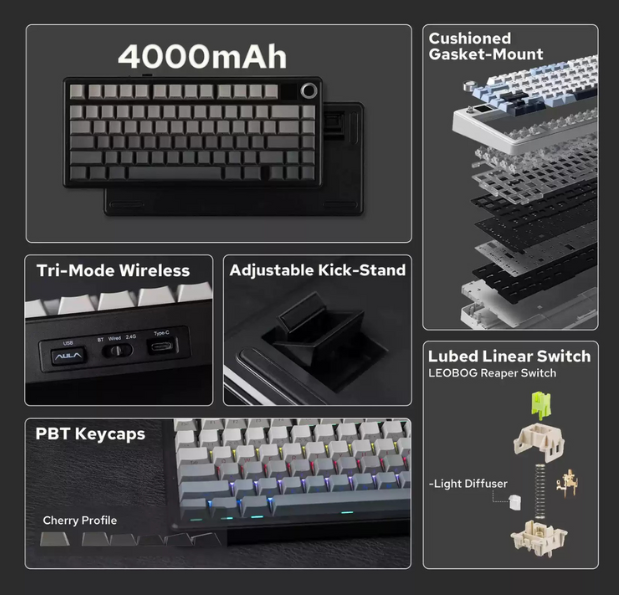
- Switch: Often comes with Aula’s custom switches (like Greywood V3, LEOBOG Reaper) or other collaborative versions, all featuring the MX-stem type.
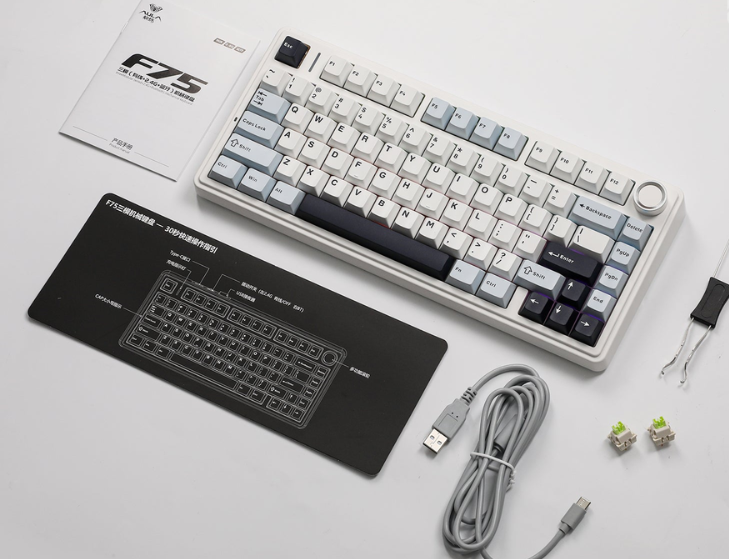
- Keycap: Durable PBT Double-shot keycaps.
- Build: Gasket Mount structure provides a smooth typing feel and a signature “thocky” sound.
- Why people care: Users seek information about the Aula F75’s keycaps because they want to personalize the keyboard, improve the typing feel, or replace the original keycaps that have worn down over time.
What Kind of Keycaps Does the Aula F75 Use?
This is the core question. The simple answer is: The Aula F75 is designed to be compatible with almost all custom keycap sets on the market.
Most versions of the Aula F75 use PBT keycaps with an OEM profile. This is a safe and familiar choice, but you can definitely upgrade for a better experience
Details on the Aula F75’s Stock Keycaps:
- Keycap Profile: Typically OEM profile. This is a medium-height profile, easy to get used to, and used on the majority of commercial mechanical keyboards.
- Material: PBT Double-shot. PBT is preferred for its textured, anti-sweat surface and superior resistance to wear (shining) compared to ABS plastic. The Double-shot molding technology ensures the legends never fade.
- Mount Structure (Stem): MX-stem. This is the world’s most common keycap mount, shaped like a plus sign ($+$). Because of this standard, you can fit virtually any keycap set from brands like GMK, Akko, Keychron, ePBT, and others.
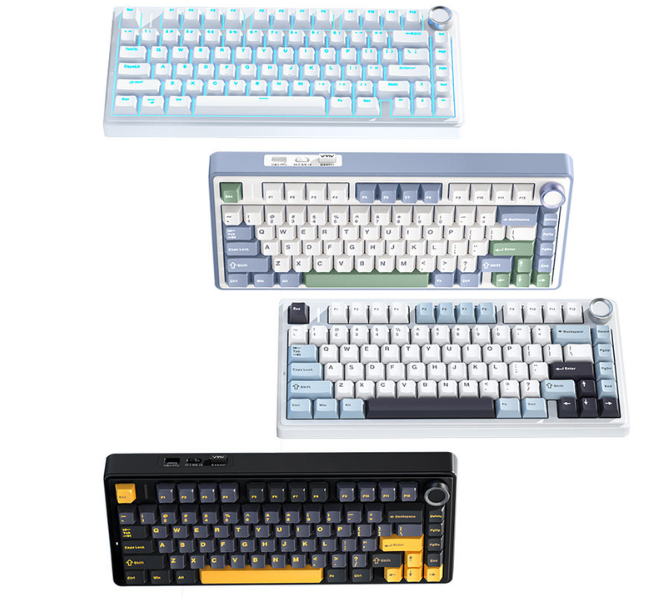
Top Keycap Sets for the Aula F75 (2025 Update)
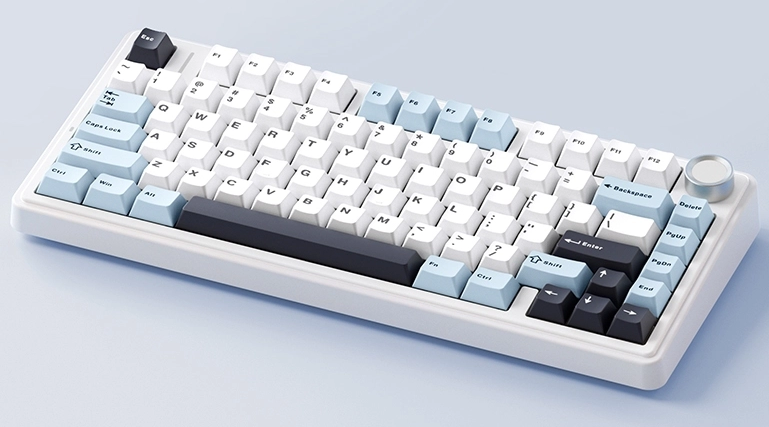
To replace your set, you need to find keycap sets that support the 75% layout, specifically those including the unique keys like the short Right Shift (1.75u), and the 1u Alt, Fn, and Ctrl keys on the bottom right row. Below are suggestions across different price segments.
Budget Segment (Under 500,000 VND / $\approx$20)
- PBT Shine-Through Keycaps: Many affordable PBT sets allow the F75’s RGB lighting to shine through.
- Keycaps from Aifei, Leobog: These brands offer PBT Double-shot sets with simple color schemes but good quality.
Mid-Range Segment (500,000 – 1,000,000 VND / $\approx$20-$40)
- Akko Keycaps (ASA/Cherry Profile): Akko is a “king” in this segment with PBT Double-shot/Dye-sub keycap sets featuring extremely attractive designs, diverse themes, and high-quality finish.
- Keychron Keycaps (KSA/OSA Profile): Keychron also offers high-quality PBT sets that provide a unique typing feel.
Premium & Aesthetic Segment (Over 1,000,000 VND / $\approx$40)
- GMK Clones: Keycap sets that copy the designs of GMK (a German high-end keycap brand) at a more reasonable price, usually made from PBT.
- Domikey & ePBT: Brands specializing in high-quality PBT Dye-sub keycaps, offering classic (retro) colors and excellent finishing.
Keycap Compatibility Comparison: Aula F75 vs. Keychron K2 & RK84
The Aula F75, Keychron K2, and Royal Kludge RK84 are three fierce competitors in the 75% mechanical keyboard segment. What do they have in common regarding keycap customization?
| Criterion | Aula F75 | Keychron K2 | Royal Kludge RK84 |
| Layout | 75% | 75% | 75% (84 keys) |
| Switch Type | Aula custom / Gateron | Gateron / Keychron | RK / Outemu |
| Keycap Stem | ✅ MX-stem | ✅ MX-stem | ✅ MX-stem |
| Stock Profile | OEM | OSA / OEM | OEM |
| Hot-swap | Yes | Yes (some versions) | Yes |
| Compatibility | Very High | Very High | Very High |
How to Remove and Replace Keycaps on the Aula F75 Keyboard
This process should only take about 15-20 minutes. Please follow each step carefully to ensure safety.
Step 1: Prepare Your Tools
- A new set of keycaps.
- A keycap puller (the wire-type is highly recommended).
- A brush or compressed air for cleaning.
Step 2: Remove the Old Keycaps
- Use the keycap puller to grip the opposite sides of the keycap.
- Pull straight up gently but firmly. Avoid wiggling or pulling at an angle, as this may damage the switch stem.
- Start with the smaller keys first, saving the longer keys (Spacebar, Enter, Shift) for last.
Step 3: Clean the Keyboard
- Once all the keycaps are removed, this is a golden opportunity to clean your keyboard.
- Use a brush to sweep away dust, hair, and debris. You can use compressed air to blow away dust in hard-to-reach corners.
Step 4: Install the New Keycaps
- Refer to the photo you took, and place the new keycap directly over the correct switch stem.
- Use your finger to press down gently and evenly until the keycap is fully seated onto the stem. You should feel a slight “click.”
- For the longer keys that use stabilizers, make sure the two auxiliary posts also connect securely into the stabilizer housing.
Suggested Accessories for Aula F75 Owners
To complete your setup, you might consider some additional useful keyboard accessories:
- Wrist Rest: Reduces wrist fatigue during long typing sessions.
- Coiled Cable: Adds aesthetic appeal to your desktop.
- Switch Lube Kit: If you want to delve deeper into customization, lubing your switches provides a smoother typing feel.
- Specialized Keyboard Cleaning Kit: Keep your “weapon” sparkling clean.
Frequently Asked Questions (FAQ)
What keycap profile offers the best typing experience on the Aula F75?
There is no absolute answer. Cherry profile is lower and has a moderate slope, suitable for gaming and fast typing. SA profile is tall and has deeply sculpted keycaps, providing a “retro” typing feel and a deeper sound. ASA/XDA profiles are balanced and easy to get used to. You should try different types to find the one that suits you best.
Do I need to buy a keycap set with exactly 80 keys like the Aula F75?
No. You only need to purchase a “full-size” keycap set (usually 108 keys or more) and ensure it includes the necessary 75% layout keys, such as the 1.75u Shift and the 1u Alt, Fn, and Ctrl keys on the bottom right row.
Understanding what keycaps the Aula F75 uses has opened up a fascinating world of customization. With its universal MX-stem standard and convenient 75% layout, the Aula F75 is an excellent platform for expressing your personality through different keycap sets. Whether you are a beginner or an experienced hobbyist, changing keycaps is not only for aesthetics but is also a worthwhile upgrade to your typing experience. I hope this article has provided you with all the necessary information.